Know what you are preparing
Preparing photographs for an online studio is mostly a selection and organisation task. You do not need to retouch every file before sending it. The useful starting point is a set of natural images that show your baby clearly and give the team a dependable reference.
Baby Lovin’s newborn workflow asks for 10–15 photos. Its guided chat collects information, including a girl-or-boy selection, before the human team processes the collection. That is different from the monthly, family, and sibling workflows, which ask for 4–5 front-facing photos; monthly also asks for the milestone.
Choose the appropriate studio first. Otherwise, you may spend time building a collection around the wrong count or expectation. Read the photo guidelines before collecting more images than you need.
Step 1: make a shortlist without changing the files
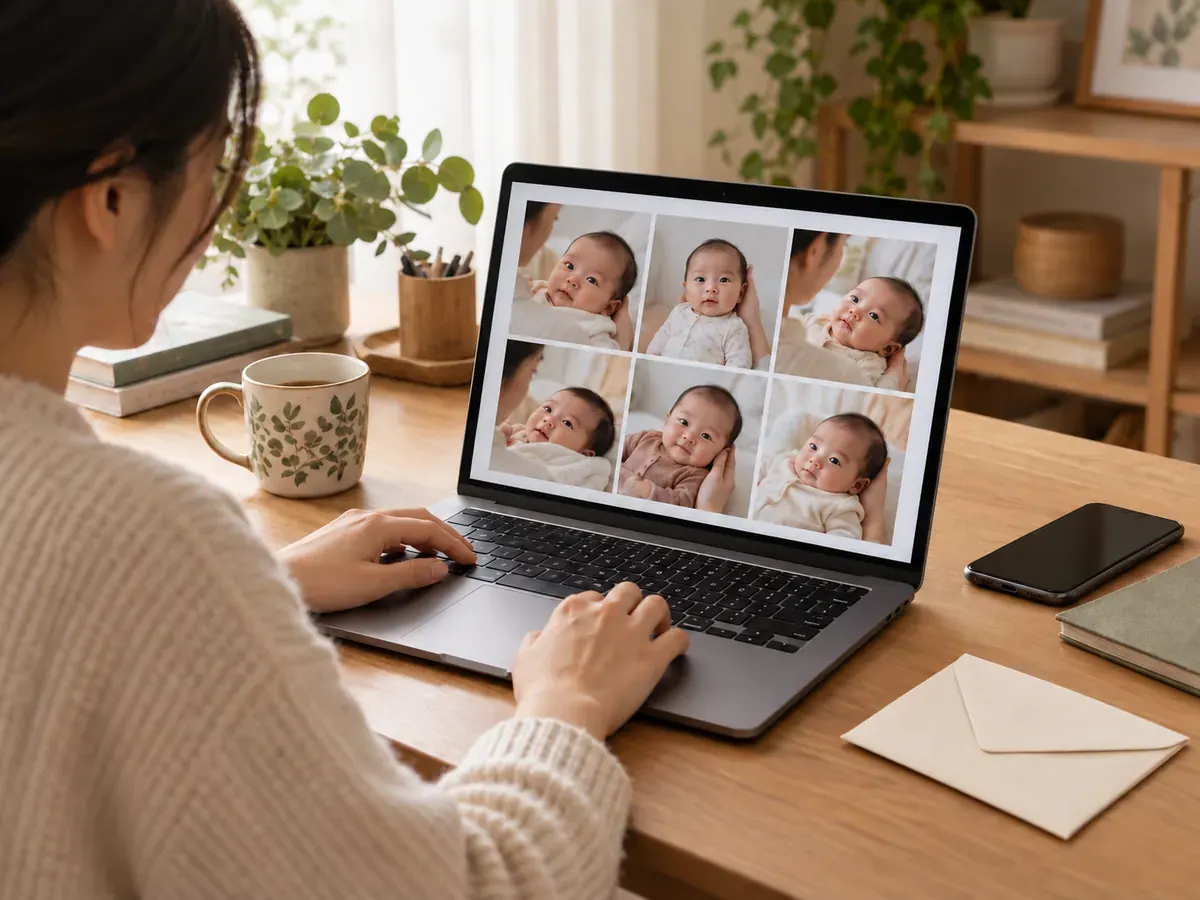
Open your camera roll and favourite the photographs where the face is easiest to recognise. Look for natural expressions, readable features, and enough room around the head. Include useful variety, but do not force a long sequence of poses or outfits.
Put the candidates in a temporary album. At this stage, selecting an image does not mean you have committed to uploading it. The album simply makes comparison easier and reduces the chance of picking the wrong file from a busy camera roll.
A dim photograph of a grandparent’s first cuddle can be precious even if it is not the clearest editing reference. You are selecting for a task, not ranking memories.
Step 2: inspect the face at full size
Open each candidate individually. Enlarge the face enough to compare the eyes or eyelids, nose, mouth, and edges of the cheeks. Check whether the apparent detail remains clear or turns into a soft patch when the thumbnail is no longer tiny.
Remove photographs where the face is substantially hidden by a hand, clothing, or another person. Keep some wider views, but avoid a set where the baby’s face occupies only a very small part of every frame.
Use the 10–15 photo checklist if you need a concrete selection structure. It explains how ordinary differences in framing and expression can provide variety while the baby remains comfortably supported.
Step 3: find the actual originals
Use the original camera photographs rather than screenshots of images displayed in another app. A screenshot may include interface elements or give you a different file from the one you intended to submit. Keep any decorative edits as separate copies.
If you use iCloud Photos, Apple’s download guide explains how to obtain your photographs and use the unmodified-original option. If you are working on a computer with Google Photos, Google documents selecting a photo and using the download command.
After downloading, open one file to confirm that it is the intended photograph. Do not rely only on a filename or a thumbnail. A cloud library, a local folder, and a messaging attachment can contain different copies of a similar-looking image.
Keep the original format unless the uploader asks for a supported alternative. Follow the current format and size instructions shown by the service rather than guessing a requirement or repeatedly exporting smaller copies.
Step 4: remove avoidable confusion
Give your album a practical name such as “Newborn studio selection.” If working with files on a computer, a short folder name and simple numbered filenames can help you check the selection. Renaming a file is optional; making the photographs easy to locate is the actual goal.
Review near-duplicates together. If several images show the same moment, retain the versions that add a clearer face, different useful framing, or an ordinary expression. Multiple crops of one image should not stand in for genuinely separate photographs.
Look at the background too. If an image displays an address label, document, or other detail you do not intend to share, choose another suitable source or ask the team how to handle it. Avoid cropping the baby so tightly that removing a background detail creates a worse source image.
Step 5: write down the few details that matter
The guided flow asks the questions needed for the selected collection. Answer them directly and consistently. If a prompt does not fit your situation, ask through contact rather than making an assumption that could affect the result.
It can help to keep a short private note of your priorities: a natural-looking face, a gentle palette, or a collection intended for a particular display. Browse the catalog for visual inspiration, while remembering that examples do not guarantee exact theme selection.
Do not write a complicated brief that depends on every example being reproduced. A concise description of what matters gives the team a clearer starting point. If a particular detail is essential, clarify it before treating the collection as a guaranteed solution for an event or gift.
Step 6: upload and check what the interface shows
Open the newborn studio and follow the guided chat. Select the intended album or files carefully. Review any visible thumbnails or file names so you can catch an accidental screenshot or unrelated image before proceeding.
Use the interface’s actual status messages as your guide. A selected file is not necessarily a completed upload. If the page shows that a file is still processing or has failed, resolve that message rather than assuming everything has reached the team.
Keep your selection intact after submission. If a question arises, you can refer to the same original files instead of reconstructing the set from memory. Save any order or conversation reference the interface gives you in your ordinary records.
If an upload does not work
Read the message first. If it identifies a format or size issue, follow that specific instruction. If the problem appears to be a connection interruption, check the connection and the existing upload status before retrying.
Try opening the troublesome file locally. If you cannot open it there, obtain a fresh copy from the original source. If it opens correctly but the service rejects it, note the file type and the exact error wording when asking for help. Do not send passwords or unrelated personal documents as part of troubleshooting.
Avoid repeatedly submitting the whole collection without checking whether earlier files were accepted. A brief, specific question through contact is more useful than creating multiple uncertain attempts.
Review previews as a collection
Baby Lovin usually returns a mix of finished themes within 24 hours through the persistent chat and My Gallery. Watermarked previews are free. Review the current pricing and available download process when considering paid originals.
Look at the baby’s recognisability, the overall style, and whether the collection meets your intended use. Newborn artwork may artfully change a pose; do not treat a finished fantasy scene as evidence of a real physical setup. Keep both the original photographs and the finished collection clearly organised.
Frequently asked questions
Should I edit skin or remove the background first?
Start with natural originals unless the current guidance asks otherwise. Keep your own edited versions separately. A heavily treated file can make it harder to discuss whether the final appearance matches the source you intended.
Can I gather the photos over several days?
Yes, you can build a coherent selection over several calm opportunities. Choose current, representative images and avoid padding the collection with unrelated stages just to reach the count. The baby does not need to complete a single extended session.
Does the guided chat mean a person is answering every message live?
The chat guides information collection through a structured flow. A human team processes the photographs afterward. Use the displayed instructions and contact options for questions rather than assuming every automated prompt is a live conversation with an editor.
Where will I find the finished collection?
The usual Baby Lovin workflow makes it available in the persistent chat and My Gallery. Keep access to the account and conversation you used, and refer to how it works for the current process.
Make new source pictures with the home phone guide, and use the blurry-photo fixes when a promising image does not pass the clarity check.
Once your selection is ready, start in the newborn studio. A small, organised set of clear originals makes the preparation easier for both your family and the team.
Sources