Identify what “blurry” means in your picture
Several different problems can make a photograph disappointing. The whole image may look smeared, the background may look sharper than the face, or only a moving hand may be soft. A filtered face may look waxy even when the original file was usable.
Open the actual photograph rather than judging a messaging-app preview. Enlarge the face and look at another part of the frame, such as the caregiver’s sleeve or a nearby fixed object. Write a simple observation: “the wall is clear, the face is soft,” or “everything has a hazy glow.”
That observation gives you a starting point. It is not a perfect diagnosis, because more than one problem can occur together. Use the tests below to narrow the possibilities, keeping the baby’s care routine unchanged.
Check the easiest physical issue first
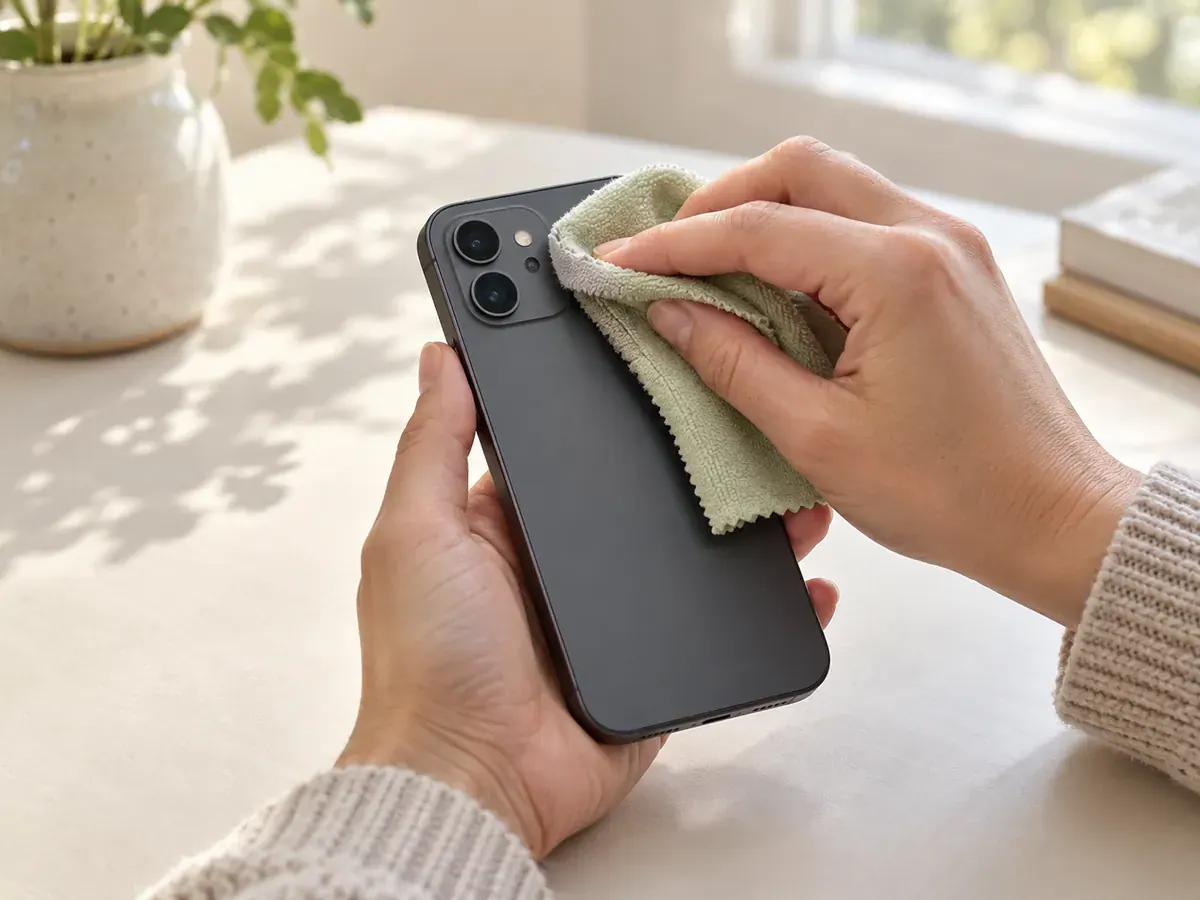
Look at the camera lens and the edge of the phone case. A fingerprint, a film, or an accessory may be affecting the view. Apple recommends cleaning blurry camera lenses with a microfibre cloth and checking for obstructing accessories in its camera troubleshooting guidance.
Do this away from the baby, then take a photograph of a stationary object in a comfortably lit room. Compare it with an earlier picture from the same position. If the hazy appearance disappears, you have a useful answer without changing your photo setup.
Make lens cleaning a quick preparation step, especially if the phone has been handled during ordinary family tasks. Use appropriate cleaning guidance for your device rather than putting household cleaners directly onto the camera.
Separate subject movement from camera movement
Movement during an exposure can leave a soft trace. Nikon’s shutter-speed guide explains that longer exposures record more motion, while shorter exposures can freeze it. You do not need to master manual camera settings to use that idea.
First, photograph a stationary object while holding the phone comfortably with both hands. Then inspect an existing baby photograph from similar light. If the test object looks clear but a moving face or hand does not, a hardware fault becomes a less useful first assumption.
For the next ordinary awake cuddle, use comfortable available light and wait for a naturally quieter instant. Do not hold a baby’s head still or delay care to reduce movement. The task is to choose a moment, not control the baby for the camera.
A short sequence can give you alternatives. Apple’s Burst mode guide explains how to select individual images afterward. Review the results; a sequence is useful only if at least one frame answers your clarity problem.
Check whether the camera chose the wrong subject
When the wall or a caregiver’s sleeve looks clearer than the baby, inspect where the camera seems to have focused. For your next test, tap the face and check the saved image. If you move substantially afterward, check again rather than assuming the earlier setting still suits the picture.
Do not fill the entire screen with the face if that means placing the phone uncomfortably close. Step back a little, keep the whole head visible, and compare. A slightly wider clear photograph is more useful than an extreme close-up that never becomes sharp.
For exact controls, consult your phone manufacturer’s instructions. The names and behaviour of focus locks vary. Keep the experiment simple: one camera mode, one framing, and a clear subject to tap.
Improve the available light without building a studio
Try your stationary test beside a different window or at another convenient time. Keep a record of which picture looks clearer. Google notes that low light can produce dark, grainy, or unclear images, and that Pixel Night Sight requires a still subject and camera in its photo-quality guide.
That is a reason to compare an ordinary daylight photograph before relying on a long low-light capture for a moving baby. It is not a reason to keep the baby awake, aim a bright lamp at the face, or hold lighting equipment over the baby.
If the baby is already comfortably settled elsewhere, postpone the photograph rather than moving everything to chase light. Our window-light guide helps you test the room before the next opportunity.
Compare standard Photo mode with Portrait mode
An intentionally blurred background is different from a soft face. Apple describes Portrait mode as a depth-of-field effect and explains how to adjust or remove it on supported images in its portrait guide.
Take an ordinary Photo-mode image as a comparison. Look at the boundary around hair, ears, clothing, and supporting hands. If you dislike the treated version, keep the straightforward one. You do not have to use a feature simply because your phone offers it.
For online editing, retain the original without strong filters and artificial skin smoothing. A clean source file gives you a useful reference if the finished portrait appears different from what you expected.
Use this symptom-and-test checklist
The table suggests an order for investigation. It does not mean each symptom has only one cause. If the first test changes nothing, move to the next relevant possibility instead of applying more and more sharpening.
Example: fixing a soft evening portrait
Imagine an evening cuddle photographed under a small room lamp. The parent’s shirt looks reasonably clear, but the baby’s face looks soft in several frames. Instead of changing five camera settings, make a stationary-object test in that room and another beside a window the next day.
If the window test is clearer, plan a brief portrait opportunity there when it naturally suits the family. Take a standard image, tap the face, and review it immediately. If it succeeds, record the simple setup. You have found a practical alternative without diagnosing every technical detail of the earlier image.
Frequently asked questions
Can editing make a badly blurred face truly sharp?
Do not assume it can recover an accurate likeness from missing detail. Keep the image as a memory if it matters, but choose a clearer source for portrait work. Ask the editor about limitations before expecting a blurred photograph to become a precise record.
Should I buy a tripod?
First test whether the difficulty comes from your camera movement, subject movement, focus, or light. A stand would not answer every one of those problems. If you use one, keep it securely positioned away from the baby and never over the baby.
Why does the picture look fine as a thumbnail?
A small preview makes detail harder to judge. Open the original file and enlarge the face before choosing it for an upload or print. Compare several candidates at the same viewing size so the selection is fair.
What if even stationary daylight photos stay blurry?
Follow the manufacturer’s camera troubleshooting steps and check whether the issue affects more than one camera. Persistent problems may need device support. Avoid buying accessories until you understand whether the phone itself is functioning properly.
Use the home phone-photo guide for a straightforward session, and the newborn collection checklist to choose the strongest files afterward.
Check the photo guidelines before opening the newborn studio. A few clear originals are a better starting point than a large group of almost identical soft images.
Sources