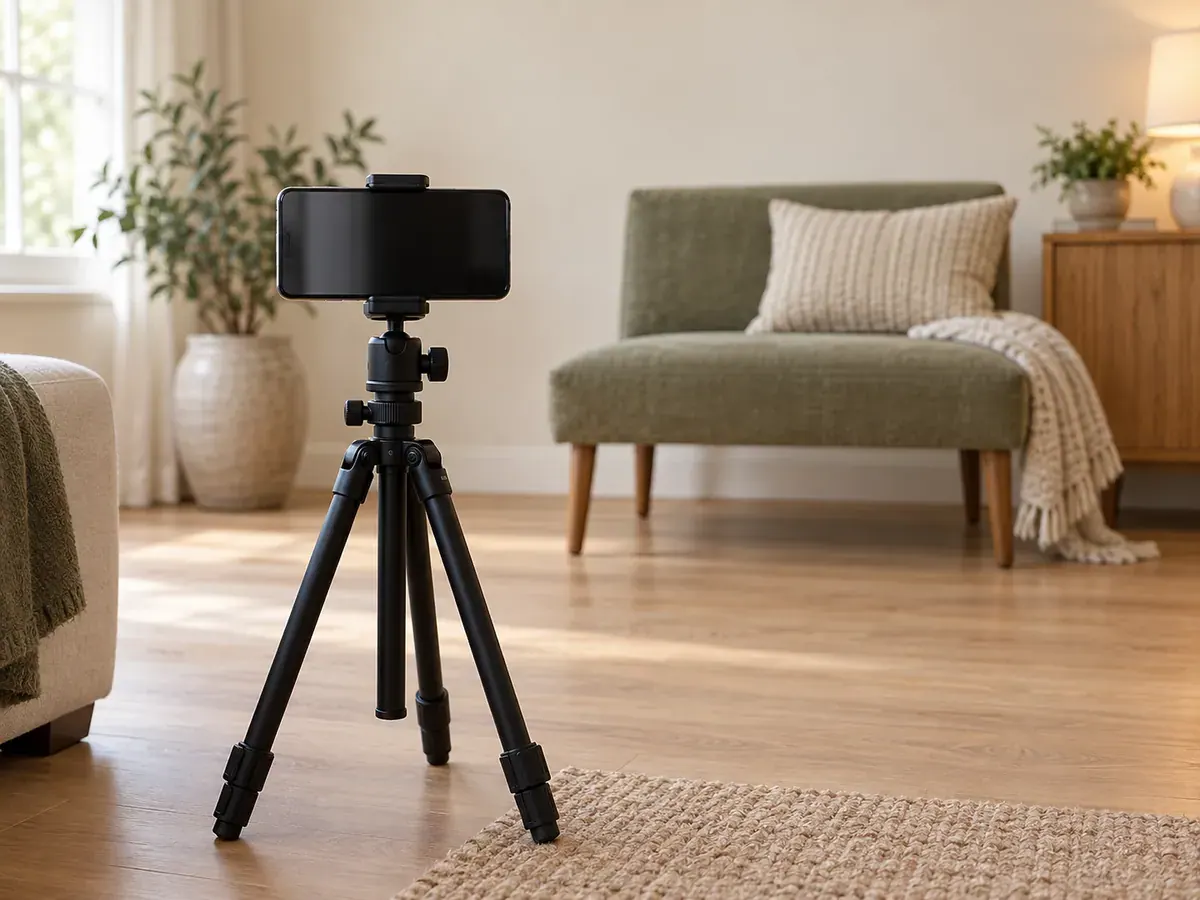
Solve the setup before starting the countdown
A timer makes it possible for the usual photographer to appear in the family picture. It also creates a small practical problem: the person setting the camera needs a predictable route into the frame. Solve that route first.
Choose a place with enough room between the phone and the people. Move bags, toys, and other obstacles away from the walking path. Set the camera near the group's face height rather than pointing steeply up from a low table. Take a test with one adult in the intended position.
Use a phone holder or tripod suited to the device, with the phone secured according to its instructions. Check stability before bringing children nearby. Keep the stand out of the family's path, and never suspend or balance the phone above a baby to achieve an overhead photograph.
Choose a simple composition
Begin with a medium-wide picture where every face is visible. Leave space above heads and at both sides so the person joining the group has room. A photograph can be cropped later; a missing shoulder or head cannot be recovered from outside the captured frame.
Ask the group to stay roughly alongside one another rather than stretching far back through the room. Avoid a composition where one person is very close to the camera and others are distant. Take a test and check all faces, since each phone and room behaves differently.
Decide where you will stand or sit before pressing the shutter. If possible, keep a family member in place while you frame the picture so you are composing around a real face rather than guessing from an empty chair.
Set the timer on your phone
iPhone
Apple's current Camera tools guide lists timer choices of three, five, or ten seconds. In Camera, open the camera controls or swipe up from the modes, choose Timer, select the delay, and press the shutter. Your controls may look different on an older iOS version.
Apple also documents focus, exposure, grid, and level controls on that page. Use the grid or level if it helps you keep doorways upright, and make a test photograph before relying on any focus or exposure setting for the whole group.
Google Pixel and other Android phones
Google's Pixel selfie instructions document three- and ten-second timers in Camera settings. Some supported Pixel models also offer a palm-triggered timer. Check the instructions for your exact model; Android camera apps do not all use the same menus or features.
Choose the camera and mode you intend to use before testing the timer. A feature available in selfie mode may work differently with the rear camera. Make one empty rehearsal so the countdown behaviour does not surprise you while you are holding a baby.
Use a calm joining sequence
If two adults are available, one can remain with the baby while the other starts the timer. The second adult then walks into the space already reserved for them. Avoid handing the baby between adults during the countdown.
For a young infant, NHS Inform advises head and neck support during holding. Keep that support unchanged as the timer runs. The camera should accommodate the hold, not require the adult to release a hand or balance differently.
If you are the only adult, rehearse the route before holding the baby. Use only a setup you can operate and enter calmly while retaining full support. If that is awkward, ask someone to take the photograph another time. The timer is a convenience, not a reason to rush infant handling.
Try a three-round family sequence
Round one is the clear record photograph. Everyone who can do so comfortably looks towards the lens. Tell children where the lens is before starting; a small verbal cue is simpler than waving an object over the phone.
Round two keeps the positions but changes the gaze. Invite people to look towards the baby or towards each other. The baby stays in the same secure hold. You may get a more relaxed expression without introducing another physical arrangement.
Round three is optional. If everyone is still comfortable, make a slightly wider image that includes more of the home. This can become the contextual photograph in an album beside the closer portrait.
Review between rounds. You do not need to inspect every frame in detail while the family waits, but check that faces are clear, nobody is cut off, and the phone has not shifted. Stop when you have a useful picture.
Fix the problem you can actually see
Change one thing at a time. If you move the stand, change the lighting, rearrange people, and switch modes together, it becomes hard to know which choice helped. For a deeper look at softness and motion, read common phone photo fixes.
Decide whether to use the front or rear camera
The front camera lets you see the group while composing. The rear camera may be the camera you usually prefer for your family photographs. There is no universal winner across all phones, rooms, and preferences.
Try the practical version first. Take one test with each if switching is easy, then compare facial detail and the amount of room in the composition. Choose the setup you can operate confidently. A technically ambitious arrangement that nobody can enter comfortably is unlikely to improve the experience.
Keep the same camera for the final sequence so the framing remains predictable. Avoid switching lenses after the family has settled unless the existing view clearly cannot fit everyone.
Select and save the final family photographs
Choose a front-facing portrait, a relaxed interaction, and perhaps one wider image. Keep originals before making square crops or adding a colour treatment. A later print may need a different shape than the image you share today.
For coordinated clothes, see what to wear for family photographs. For a clear archive that does not become another large project, use organising baby photos through the first year.
If you want an edited family collection, the Baby Lovin family studio uses four or five front-facing photographs. Choose images with visible faces and a source pose you like, because family outfit, theme, and background edits preserve the original pose and identity.
Frequently asked questions
Which timer delay should I choose?
Use the longest available delay that lets you walk into place calmly. Rehearse once. A shorter countdown is useful only when you are already close to your final position and do not need to rush.
Do I need a remote shutter?
No. A built-in timer can be enough. A compatible remote is optional, and its setup depends on the phone and accessory. Test it before involving the family if you decide to use one.
Should I use Portrait mode for a group?
Try a test and inspect every face and edge. If a processing effect looks distracting or leaves someone unclear, use the ordinary photo mode. Keep the mode that produces a reliable picture on your particular phone.
How many photographs should we take?
Take a few, check whether you have a clear frame, and decide whether another round adds something useful. There is no target number that matters more than the family's comfort and the quality of the pictures already captured.
Sources